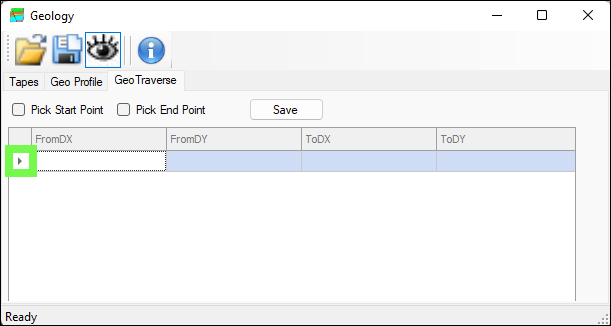
❖ To set up Geo Traverses, first select the first row in the grid below; this is where your coordinate data will be populated:
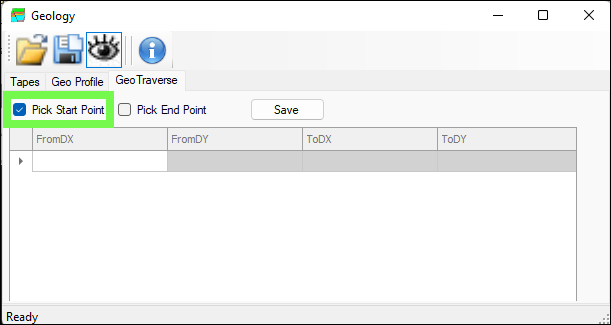
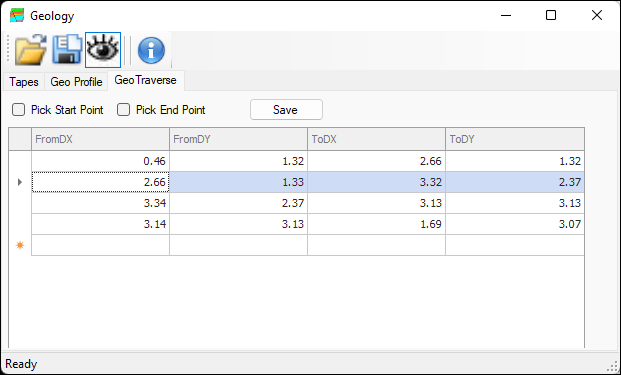
❖ Then tick on Pick Start Point and click in your scene at the correct point, the offsets of your start point are then populated in the first row of the grid below under FromDX and FromDY:
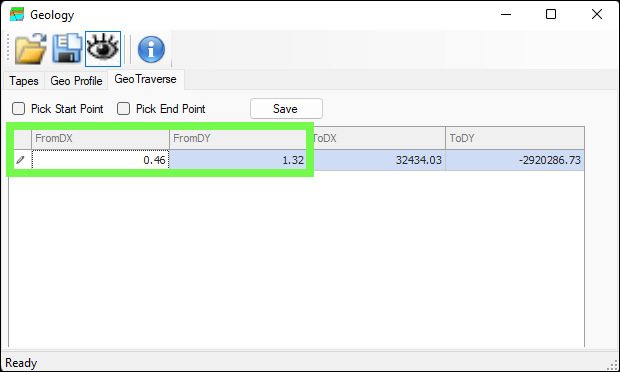
❖ Then, tick on Pick End Point and click in your scene at the correct point, the end point offsets are then populated under ToDX and ToDY, and the first segment of your Geo Traverse has been drawn as well in the scene:
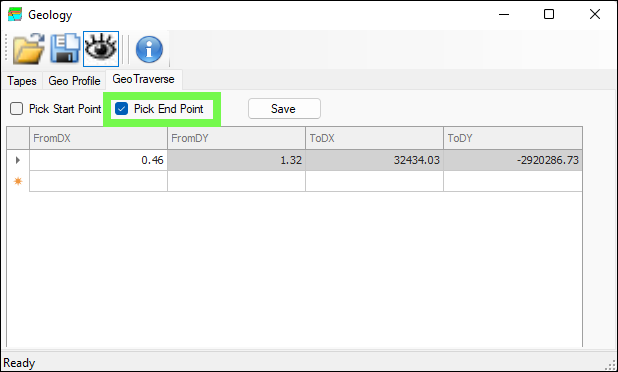
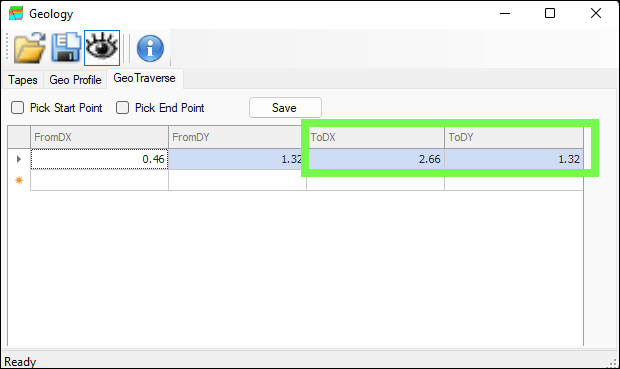
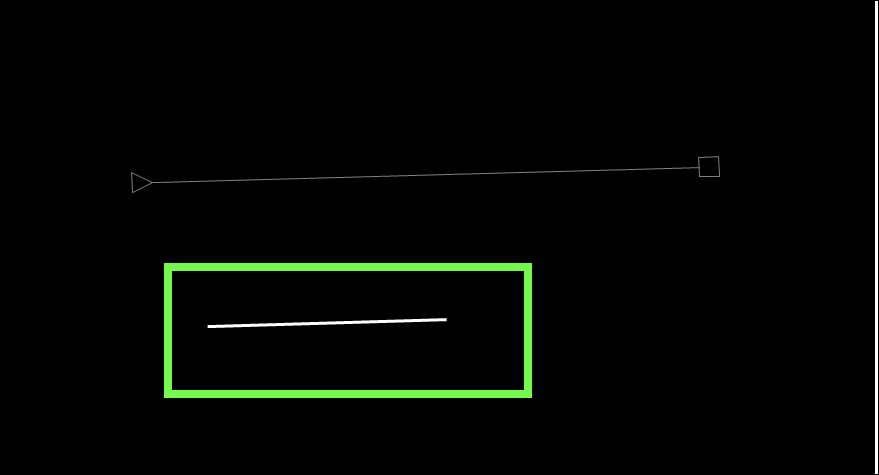
❖ Then, click in the row below to create the next part of the traverse, and in the same way as before, tick on Pick Start Point and Pick End Point to create the segment:
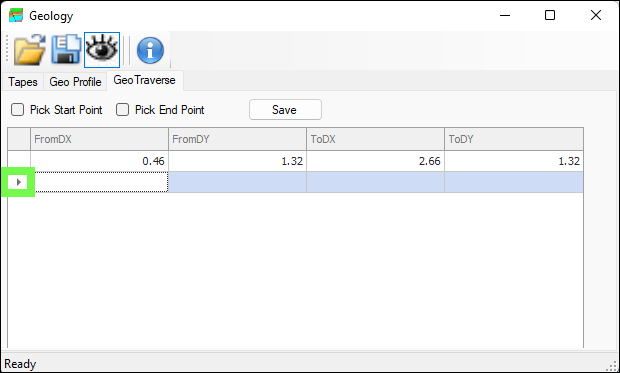
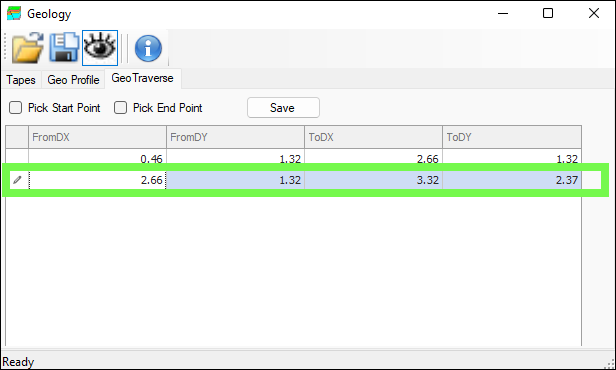
❖ Continue on like this until you are done:
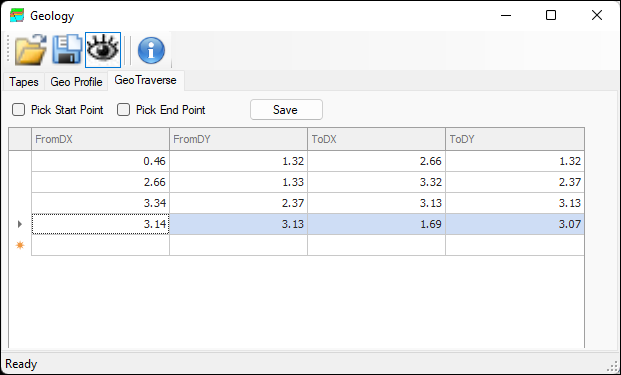
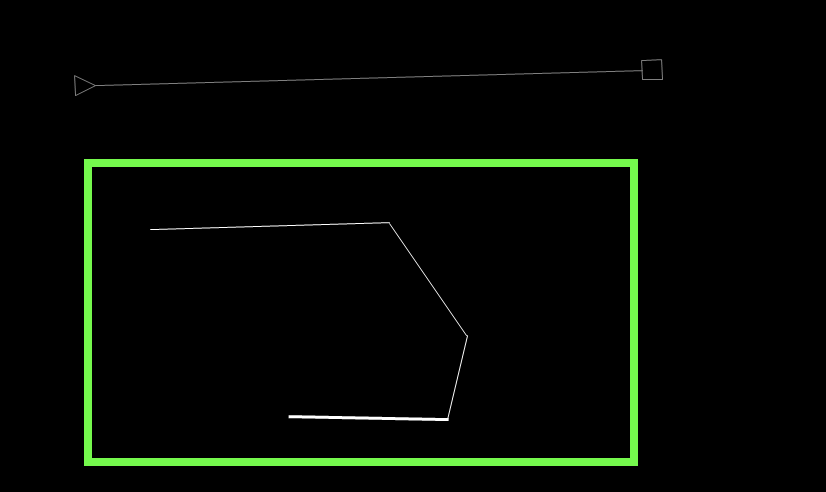
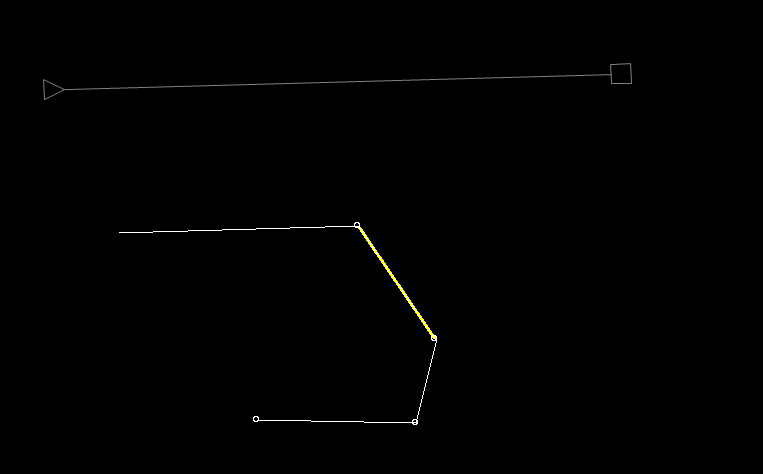
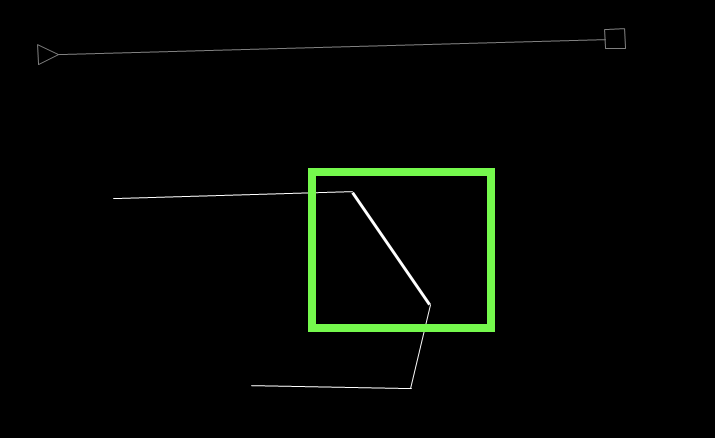
❖ As you click on each segment in the grid it is highlighted in the scene:
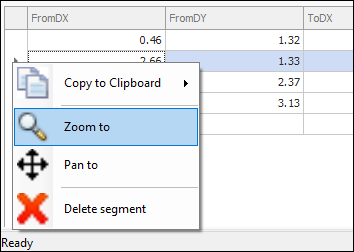
❖ You can also right click on a segment and choose to Copy to Clipboard, Zoom to, Pan to or Delete Segment:
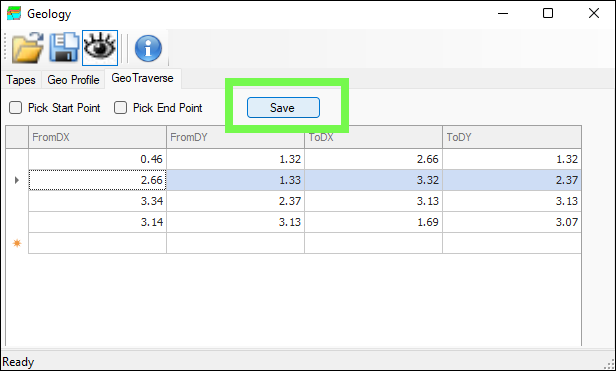
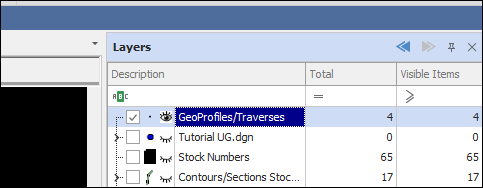
❖ When you are done you can click Save and your Geo Traverse will be saved to a layer and you can then select any of the segments and choose to add them to a Geology class: